
For small business owners, recording finance operations is vital for long-term growth. While modern bookkeeping involves the use of several tools, the go-to one for most of the small business owners is still Excel. When the business is in the initial phase, maintaining the records in excel keeps the work simple. In the spreadsheet, expenses are updated consistently with tabs and status to track later. Reliable, simple and clean records makes it easy to navigate through initially.
The excel spreadsheet enables you to create multiple tabs and customized sheets without any additional costs. Excel bookkeeping helps you record your financial transactions at the initial stage of your business with ease. Understanding the benefits and limitations of excel bookkeeping help you make smarter decisions at the right time.
In this guide, let’s see how to use Excel for bookkeeping, tips for creating a small business accounting spreadsheet, and insights on how to streamline your financial management process.
Excel is a great starting point for bookkeeping, but it's like using a calculator when you need a computer. It works until it doesn't, and the moment it fails, it usually fails right before tax season or an investor meeting. Know its limits before they surprise you.
Ankit Sarawagi, CPA, CA, MBA · LinkedInWhat is Excel Bookkeeping?
Excel bookkeeping refers to the use of Microsoft Excel to manage and organize your business's financial data. With Excel, you can create bookkeeping spreadsheets that track income, expenses, assets, liabilities, and more. This method is particularly popular among small business owners who prefer a hands-on approach to their finances.
Excel's versatility makes it an excellent tool for basic bookkeeping. You can customize your spreadsheets to suit your business's unique needs, whether you're tracking daily transactions or preparing financial statements. Additionally, Excel offers features like formulas, pivot tables, and charts, which can help you analyze your data and make informed decisions.
While Excel accounting is a cost-effective solution, it's important to note that it may not be suitable for larger businesses with more complex financial needs. In such cases, professional bookkeeping services or dedicated accounting software may be a better fit.
The consistent trajectory we saw from our clients is that they set a clean excel bookkeeping practice when the business started. As time progressed, quality degraded in the mid and later stage of their business growth. The original structure worked well for their initial phase by default. When they opened a second account and added a service, they couldn't maintain their spreadsheet as the process looked extensive. The process is not wrong by itself, they just didn't know when to make the right switch.
Understanding it earlier would make the small business owners make the right decision at the appropriate time.
Why Use Excel for Small Business Bookkeeping?
Excel is a powerful tool for small business owners, offering several advantages:
- Affordability: Unlike many accounting software programs, Excel is relatively inexpensive and often comes pre-installed on computers.
- Customization: You can create a small business spreadsheet for income and expenses tailored to your specific needs.
- Accessibility: Excel files can be easily shared and accessed across devices, making it convenient for collaboration.
- Learning Curve: Many people are already familiar with Excel, reducing the time needed to learn new software.
However, Excel does have its limitations. It requires manual data entry, which can be time-consuming and prone to errors. For businesses with more complex needs, integrating Excel with professional tax services or CFO services can provide additional support.
How to Set Up a Bookkeeping Spreadsheet in Excel
Creating a bookkeeping spreadsheet in Excel is easier than you might think. Here's a step-by-step guide to help you get started:
1. Choose a Template or Create Your Own
You can either use a pre-designed Excel bookkeeping template or create your own from scratch. Templates are a great option if you're new to Excel, as they provide a structured format for your data.
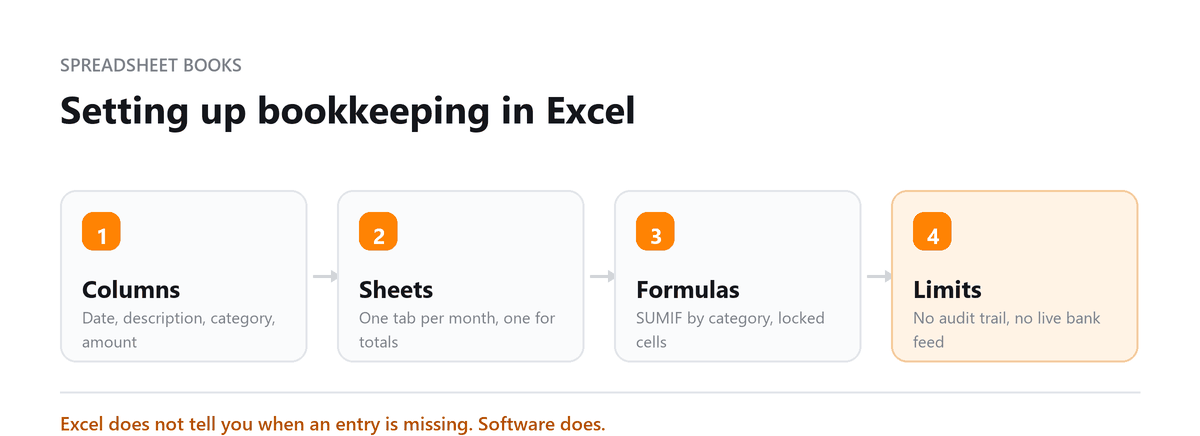
2. Set Up Your Columns
Organize your spreadsheet by creating columns for key categories, such as:
- Date
- Description
- Income
- Expenses
- Account Type
- Balance
3. Input Your Data
Enter your financial transactions into the appropriate columns. Be sure to include details like the date, description, and amount for each entry.
4. Use Formulas for Calculations
Excel's built-in formulas can save you time and reduce errors. For example:
- Use =SUM() to calculate totals.
- Use =IF() to categorize transactions automatically.
5. Apply the Accounting Number Format
Apply the accounting number format in Excel to make your spreadsheet more professional. This format aligns currency symbols and decimal points, making your data easier to read.
6. Review and Reconcile
Regularly review your spreadsheet to ensure accuracy. Reconcile your entries with bank statements to identify any discrepancies.
Excel Bookkeeping Templates for Small Businesses
Using a template can simplify the process of setting up your small business accounting spreadsheet. Here are a few templates you can use:
- Income and Expense Tracker: Tracks monthly income and expenses, providing a clear overview of your cash flow.
- Accounts Payable and Receivable: Manages outstanding invoices and payments.
- Balance Sheet Template: Summarizes your business's assets, liabilities, and equity.
- Profit and Loss Statement: Tracks revenue and expenses to calculate net profit.
These templates can be customized to suit your business's needs, saving you time and effort.
Tips for Effective Excel Bookkeeping
To make the most of Excel bookkeeping, follow these best practices:
- Keep It Simple: Avoid overcomplicating your spreadsheet. Focus on the data that matters most to your business.
- Back-Up Your Data: Regularly save and back up your Excel files to prevent data loss.
- Use Conditional Formatting: Highlight essential data, such as overdue invoices or low balances, using conditional formatting.
- Automate Where Possible: Use Excel's features, like macros and pivot tables, to automate repetitive tasks.
- Stay Consistent: Update your spreadsheet regularly to ensure accurate and up-to-date financial records.
Limitations of Excel Bookkeeping
While Excel is a versatile tool, it's not without its drawbacks:
- Manual Data Entry: Entering data manually can be time-consuming and prone to errors.
- Limited Collaboration: Sharing Excel files can lead to version control issues, especially in team environments.
- Scalability Issues: As your business grows, Excel may struggle to handle large volumes of data.
- Lack of Integration: Excel does not seamlessly integrate with other business tools, such as payroll or inventory management systems.
Businesses with more complex needs should consider using dedicated accounting software or outsourcing to professional bookkeeping services.
When to Upgrade from Excel Bookkeeping
While Excel is a great starting point, there may come a time when your business outgrows it. Here are some signs that it's time to upgrade:
- Increased Transaction Volume: If you're spending too much time entering data, it may be time to switch to accounting software.
- Need for Real-Time Data: Accounting software provides real-time insights, which Excel cannot offer.
- Complex Financial Needs: Excel may not be sufficient for businesses that require advanced features like inventory tracking or payroll management.
- Desire for Automation: Accounting software automates many tasks, reducing the risk of errors and saving time.
When you're ready to upgrade, consider consulting with bookkeeping services or CFO services to find the best solution for your business.
Final Thoughts
Excel bookkeeping is a practical and cost-effective solution for small businesses looking to manage their finances efficiently. By creating a small business spreadsheet for income and expenses, you can track your financial performance, make informed decisions, and stay organized. However, as your business grows, you may need to explore more advanced tools or seek professional support from bookkeeping services, tax services, or CFO services.
Whether you're just starting or looking to streamline your existing processes, Excel can be a valuable tool in your financial management toolkit. With the right approach, you can turn your Excel bookkeeping template into a powerful resource for driving your business's success.
Book a free consultation and we will move you off Excel without losing history.
Excel Bookkeeping FAQs
Is Excel good enough for bookkeeping?
For a very small business with fewer than 30 to 40 transactions per month, yes. Excel is free, flexible, and gets the job done at the early stage. But it has real limits: no automatic bank feeds, no built-in audit trail, and version control becomes a problem the moment more than one person touches the file. Most businesses outgrow it within 1 to 2 years.
What is the best free Excel bookkeeping template for small businesses?
Microsoft offers free templates directly in Excel (File → New → search 'bookkeeping'). SCORE (score.org) and Vertex42 also offer free, well-structured templates for income/expense tracking, cash flow statements, and profit and loss. Download a few and pick the one that matches your transaction types.
When should I switch from Excel to accounting software?
Switch when any of these apply: you have employees and need to track payroll, you carry inventory, you process more than 50 transactions a month, you need real-time bank reconciliation, or your accountant is spending significant time cleaning up your Excel file at year-end. QuickBooks or Xero typically pays for itself in time saved within the first month.
Can Excel do double-entry bookkeeping?
Yes, but it requires manual setup and discipline. You'd need to create separate columns for debits and credits and build your own formulas to check that they balance. It's possible but cumbersome, dedicated accounting software handles double-entry automatically in the background.
How do I protect my Excel bookkeeping file from errors?
Use Excel's built-in data validation to restrict what can be entered in each cell. Lock formula cells so they can't be accidentally overwritten (Review → Protect Sheet). Keep a backup copy in OneDrive or Google Drive with version history enabled. And reconcile against your bank statement monthly, errors caught early are far easier to fix.

Written by
Ankit Sarawagi, CPA, CA, MBA
Ankit leads the finance team at Profitjets, where he has worked with 500+ businesses across the US on bookkeeping, tax and CFO-level strategy. He writes about the habits that keep small business books accurate all year. Connect on LinkedIn
Free consultation
Spreadsheet Starting to Creak?
Book a free consultation and we will move you off Excel without losing history.